Nowadays, many users need to log in to multiple instant messaging accounts on the same mobile phone. One account may be used for personal purposes, while another account may be used for work or to contact different contacts. This is where the dual-space feature comes in handy, and solutions like dual space WhatsApp are often used together with modified apps like Blue WhatsApp.
This guide will explain in a simple and clear way how Dual Spaces works and how to use it to run two WhatsApp accounts on the same device.
What is Dual Space
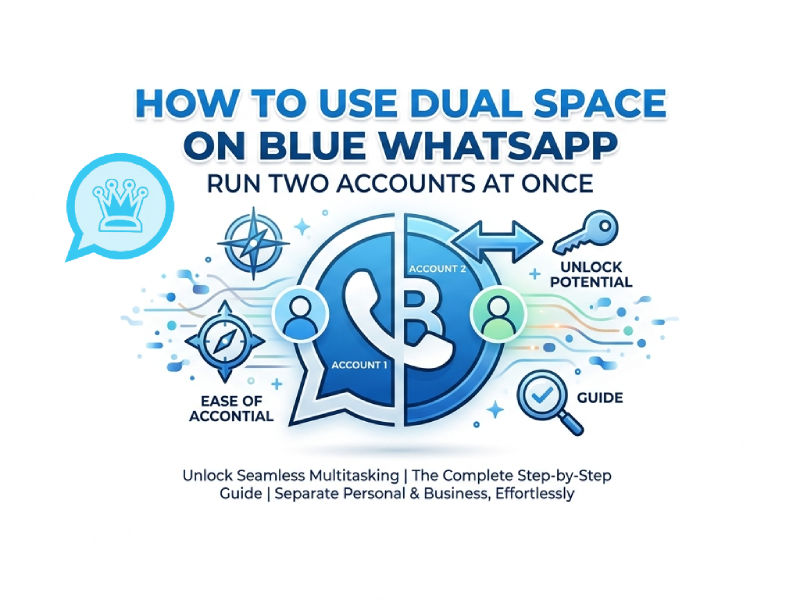
Dual Space is a tool that allows you to create copies of apps on the same phone. Its working principle is to create an independent space inside the device, where applications can run independently of the original system, allowing users to log into multiple accounts or separate personal and work data without interference, including apps like parallel whatsapp for messaging scenarios that require dual accounts on one device.
Simply put, it allows you to “clone” apps. For example, you can install two versions of the same instant messaging app simultaneously. Each version runs independently, so you can log in to different accounts without getting your data mixed up.
This is very useful when you want to separate different parts of your digital life. One account can be used for work, and another account can be used for private communications. Both accounts can remain active simultaneously, without you needing to log out or switch back and forth.
Why Use Dual Space with Blue WhatsApp
Using Dual Spaces on WhatsApp is more than just installing two apps on one phone. Its main function is to make daily communication easier to manage. Here are some obvious reasons why people choose this setting.
1. Separate personal and work life
Many users need to separate different parts of their lives. One account can be used to contact family and friends, while another account can be used for work information or business contacts. The dual-space feature makes this distinction simple, eliminating the need for two phones.
2. Use two phone numbers on one device
If you have a dual-SIM phone or two active numbers, the Dual SIM Space feature allows you to run two accounts simultaneously. This means you can receive and reply to messages from two numbers without switching apps.
3. Better message organization
Placing chat content in a separate environment helps reduce confusion. Important work information is not mixed in with private group chats, making it easier to stay focused and respond faster.
4. More flexibility with Blue WhatsApp features
Compared to standard instant messaging apps, Blue WhatsApp offers more customization options. When using dual accounts, you can apply different settings to each account for a more flexible and personalized experience.
5. Easier daily switching
No need to log out and log back in; both accounts can remain active simultaneously. This saves time and makes communication smoother throughout the day.
6. Cleaner communication flow
When all content is divided into two spaces, each account appears more organized. You can manage different social circles or responsibilities without confusing the conversation.
Step-by-Step: How to Set It Up
Most modern phones already include a built-in app cloning feature. This means you don’t always need a separate Dual Space app. You can manage two WhatsApp accounts directly through your phone’s system settings. Here is how to do it using your device settings:
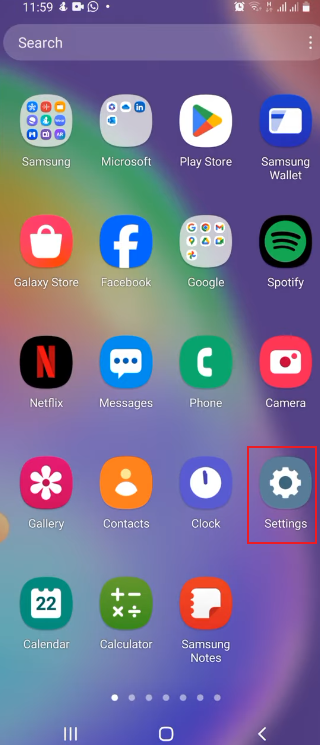
Open Your Phone Settings
Go to your main Settings menu. This is where system features are managed, including app cloning or dual apps.
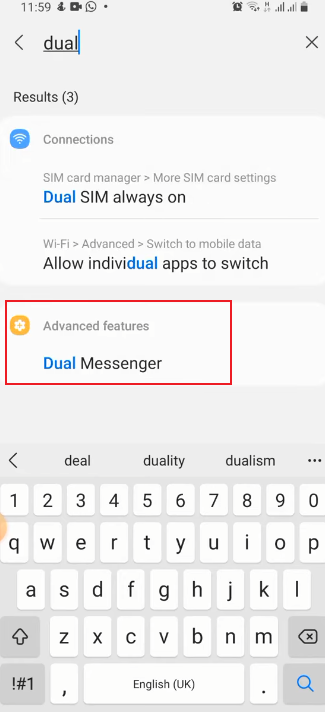
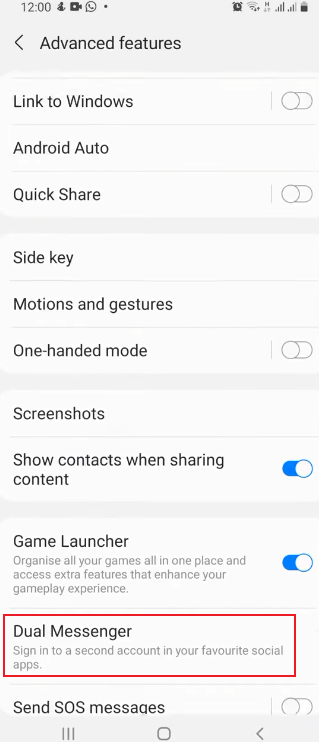
Find the Dual Apps / App Clone Option
Depending on your phone brand, the name may be slightly different:
- Dual Apps
- DualMessengers
- Clone Apps
- Parallel Apps
This section controls whether an app can be duplicated.
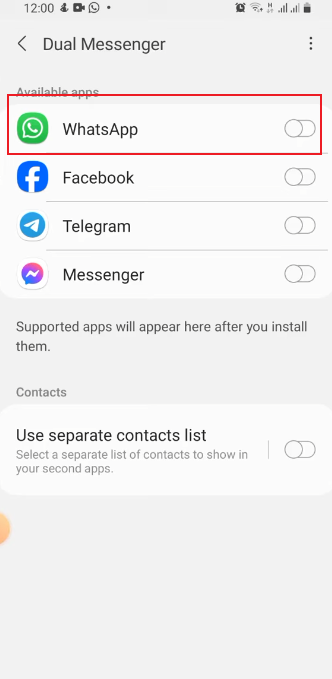
Select WhatsApp or Blue WhatsApp
Inside the dual apps menu, you will see a list of supported apps. Find WhatsApp or Blue WhatsApp and switch the toggle to enable cloning.
Once enabled, your phone will automatically create a second app icon on your home screen.
Open the Second App
Go back to your home screen. You should now see a second WhatsApp icon. It usually has a small mark or badge to show it is the cloned version.
Tap it to open.
Log in with Another Number
When you open the cloned app, set it up just like normal WhatsApp:
- Enter a different phone number
- Verify it with SMS or a call
- Complete the setup process
This account will work separately from your original WhatsApp.
Start Using Two Accounts
Now you can use both apps at the same time:
- One WhatsApp for your main number
- One cloned WhatsApp for your second number
Messages, contacts, and chats are kept separate automatically.
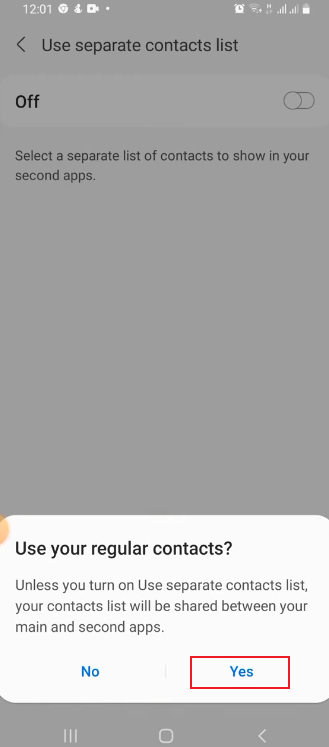
Managing Two Accounts Easily
When you start using the Dual Spaces feature to log in to two WhatsApp accounts simultaneously, the main challenge is not the setup, but how to manage these two accounts in daily use and avoid confusion, especially when switching between personal and work chats or handling notifications from both sides; establishing some simple rules early on will make everything feel much more natural over time, and if you’re just getting started, searching for something like download whatsapp dual can help you quickly find the right version or guide before you build your own routine.
A simple approach is to assign specific functions to each account. For example, you can use one account as your “primary personal space” to chat with family and friends, and another account for work, online contacts, or less frequent conversations. Once each account has a specific purpose, you no longer need to worry about which account to send messages to.
Notification features also play an important role in maintaining clear communication. Since both accounts may receive messages at the same time, it’s best to mentally confirm which application you’re currently using before replying. Over time, you’ll naturally get used to switching between the two accounts without getting confused about the conversation.
Setting some simple daily habits can also be very helpful. For example, you can check your work account at specific times of the day, while keeping the usage time for your personal account flexible. This establishes a lightweight set of rules, avoiding frequent switching and making communication more controllable and clearer.
With these small adjustments, managing two accounts becomes easy and smooth, without feeling complicated or overwhelmed.
Common Uses in Daily Life
Many people use Dual Space with Blue WhatsApp for practical reasons:
- Freelancers managing clients and friends
- Small business owners handling customer chats
- People with dual SIM phones
- Users who want privacy between different social groups
It is a simple way to keep communication structured.
FAQs
1. Can I use Dual Space without Blue WhatsApp?
Yes. Dual Spaces also applies to the standard version of WhatsApp. The blue WhatsApp is optional and only provides additional features.
2. Do both WhatsApp accounts run at the same time?
Yes. The original app and the clone built into Dual Space can receive messages simultaneously.
3. Can I use the same phone number on both accounts?
No. Each WhatsApp account needs a different phone number to work properly.
4. Does Dual Space affect my original WhatsApp data?
No. The original app stays separate, and its data is not shared with the cloned version.
5. Can I switch between accounts easily?
Yes. You can simply open either the original WhatsApp or the one inside Dual Space, depending on which account you want to use.
Conclusion
With Blue WhatsApp’s Dual Spaces feature, you can easily run two accounts on one phone, which is especially useful if you’ve ever tried solutions like Parallel Space WhatsApp for managing multiple logins, as it helps keep conversations separate, saves time, and makes daily message handling much more organized and convenient.
With just a few steps, you can say goodbye to cumbersome account switching and smoothly handle all your tasks on one device.