Sharing photos and videos is one of the most common activities on Blue WhatsApp. Whether sending family photos, travel videos, work documents, or social media content, media quality is paramount. With the right Blue WhatsApp Compression Settings, users can balance file size and quality more effectively, making it easier to share content without unnecessary delays. Meanwhile, the upload and download speeds for large files are relatively slow. At this point, media compression settings become particularly important.
Blue WhatsApp offers several options to help users manage how photos and videos are processed before they are sent. Understanding these settings can improve image quality, reduce file size, and result in a smoother communication experience.
We have shared the ways to share photos like a pro on Blue WhatsApp before. In this guide, we’ll explain what media compression is, how Blue WhatsApp handles media files, and which settings can help you get the best results.
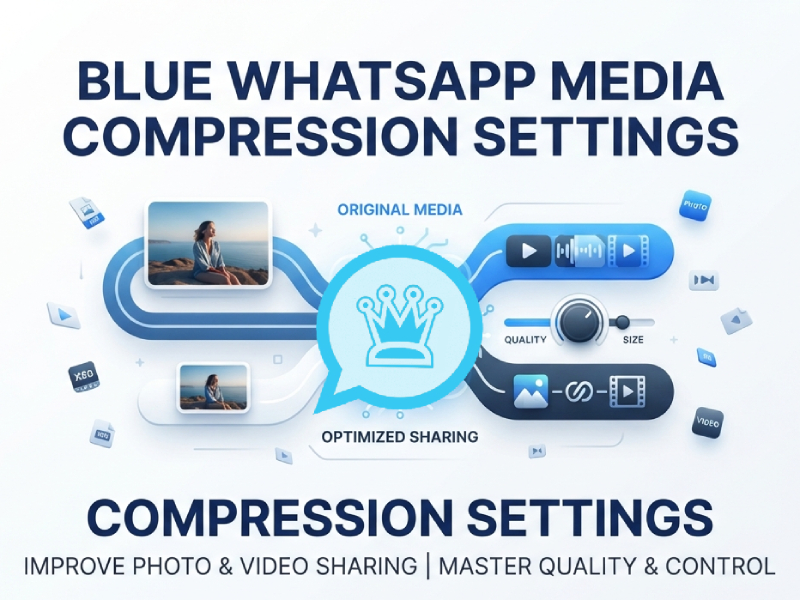
What Is Media Compression
Media compression refers to the process of reducing the size of digital files, including photos, videos, audio files, and documents. After file compression, some unnecessary data is removed or reorganized, which helps reduce storage space and improve transfer speed. For users who want to maintain better image quality while sharing files, learning how to send HD photos on Blue WhatsApp can be useful, as it allows pictures to retain more details during transmission while still benefiting from efficient file management.
In instant messaging apps like Blue WhatsApp, media compression plays a crucial role when users send pictures and videos. Raw photos and videos taken by modern smartphones can be very large because they contain a lot of detail and high-resolution information. Without compression, sending these files could take longer and consume more mobile data.
There are two common types of compression:
- Lossless compression: This method reduces file size while keeping all original data. It is useful when maintaining complete quality is important.
- Lossy compression: This method removes some less noticeable data to achieve a much smaller file size. It is commonly used for photos and videos because it provides faster sharing with acceptable quality.
For everyday conversations, moderate compression is usually sufficient, as it can both speed up message delivery and maintain image clarity. However, users who frequently share professional photos, high-definition screenshots, or high-resolution videos may be more inclined to choose settings that prioritize image quality.
Understanding how media compression works can help users choose the right Blue WhatsApp settings for their needs. Whether users prioritize faster sharing, saving storage space, or maintaining higher image quality, adjusting compression options can improve the overall media experience.
Why Compression Settings Matter
Many users have noticed that pictures and videos sent through instant messaging applications sometimes look different from the original files. This is usually because the application processes and compresses the media file before sending it. Compression settings determine the extent to which file size is reduced and the degree to which the original image quality is preserved.
Choosing the right compression option is crucial for everyday communication. For users who frequently share photos, videos, or other media files, incorrect settings may result in blurry images, excessively long upload times, or unnecessary storage space usage.
Compression settings can affect:
- Photo sharpness
- Color quality
- Video clarity
- File transfer speed
- Mobile data consumption
- Storage space
The appropriate settings depend on how you use Blue WhatsApp. Higher image quality settings can provide a sharper image, but may generate larger files. Lower graphics settings can improve speed and save storage space, but may result in a loss of some visual detail.
How Blue WhatsApp Handles Photos
When a photo is sent through Blue WhatsApp, the app may optimize the file before delivery.
Depending on the selected settings, Blue WhatsApp can:
- Keep more original details
- Reduce image size for faster sending
- Balance quality and speed
- Improve compatibility with different devices
This flexibility gives users more control over the media-sharing experience.
Understanding Available Compression Options
Different versions of Blue WhatsApp may offer slightly different menus, but most include several media quality options.
High Quality
High-quality mode focuses on preserving image details.
Benefits include:
- Better sharpness
- Improved colors
- More detail retention
- Better results for photography
This setting can be used to share travel photos, event photos, or important visual content.
Medium Quality
Medium quality provides a balance between file size and image appearance.
Advantages include:
- Faster transfers
- Reasonable image quality
- Lower storage requirements
- Better performance on slower connections
For everyday chatting, medium quality is often enough.
Low Compression
Low compression means less file reduction.
Features include:
- Larger file sizes
- Better visual quality
- More original image information
- Improved zoom performance
This option works well for users who prioritize image quality.
Strong Compression
Strong compression reduces file size more aggressively.
Benefits include:
- Faster sending
- Lower data usage
- Reduced storage impact
- Better performance on limited networks
This setting is often preferred when speed is the main concern.
Best Settings for Photo Sharing
In Blue WhatsApp, the best photo settings depend on the type of pictures you usually send. Different photos require different features. For example, personal photos taken during a trip may require higher image quality, while simple screenshots may not need to be too large in file size. Users who install the app through a Blue WhatsApp APK Download often explore these options to improve their sharing experience. Adjusting compression settings according to specific circumstances can help achieve a good balance between image quality and sharing speed.
1. Personal Photos
For family photos, travel photos, and special moments, preserving more detail is often a top priority. A high-quality mode with a lower compression rate is a better choice because it helps preserve the image’s sharpness, color, and subtleties.
Although the file size may be larger, the higher image quality makes the image closer to the original.
2. Social Media Images
Many users share images from social media platforms, websites, or online communities. These images are usually already optimized, so using extremely high image quality settings may not result in a noticeable improvement.
For this type of content, medium quality mode combined with balanced compression is usually a good choice.
This setup is perfect for users to share emojis, screenshots, product images, or everyday photos in their daily conversations.
3. Work-Related Images
For business images, documents, charts, or screenshots containing text, image clarity is crucial. Excessive compression can make small text or details difficult to read.
This is especially important in image sharing used for communication, planning, or collaboration.
Recommended Settings for Video Sharing
Choosing the appropriate video compression settings depends on the type of video you are sending. Different types of videos have different requirements. A short, casual video does not need to be as high-quality as a detailed tutorial or a professionally recorded video. If you regularly share media and status updates, features such as Blue WhatsApp Anti Delete Status can also influence how you manage and view content, making it useful to balance video quality with file size for a smoother sharing experience. In most cases, selecting moderate compression settings helps maintain clear visuals while reducing upload times and data usage.
Short Clips
For short videos such as daily moments, funny clips, or quick updates:
- High quality
- Standard compression
- Balanced resolution
These settings help maintain video clarity while avoiding unnecessary increases in file size. Since short videos typically don’t contain much detail, a balanced setup can provide a good experience for sending and watching.
Long Videos
For longer recordings, file size becomes an even more important factor. High-resolution videos may take longer to upload and may also require more storage space.
Recommended settings:
- Medium quality
- Balanced compression
- Optimized video size
These options can reduce transmission time while maintaining acceptable video quality. They are suitable for travel videos, event recordings, or longer personal videos that need to be shared quickly.
Educational and Tutorial Videos
Videos containing text, screen recordings, or detailed explanations typically require higher resolution. Improving video quality can enhance the viewing experience if the video contains small text or important visual information.
Recommended settings:
- Higher quality settings
- Lower compression
- Better resolution preservation
This helps maintain clearer details, making it easier for viewers to read information and follow the content.
Social Media Videos
Many users share videos downloaded from social media platforms or videos they have specially created. Since these videos are usually already optimized, they generally do not require excessive compression.
A good choice is:
- Medium quality
- Standard compression
- Balanced file size
This keeps the video looking good while making it easier to share with multiple contacts.
Tips for Better Media Sharing
To get the most from Blue WhatsApp media settings:
- Review media quality options regularly.
- Use higher quality for important photos.
- Choose balanced compression for everyday chats.
- Monitor storage usage over time.
- Adjust settings based on your network conditions.
- Test different options to see which results you prefer.
Small changes can make a noticeable difference in daily use.
Final Thoughts
WhatsApp Blue’s media compression settings give users more control over how photos and videos are shared. By understanding how compression affects image quality, storage space, and transfer speed, users can customize applications to suit their needs.
Whether your goal is to preserve image details, reduce file size, or improve upload speed, appropriate compression settings can help you achieve a smoother and more enjoyable media sharing experience. Take a few minutes to explore these options and get better results every time you send photos and videos.