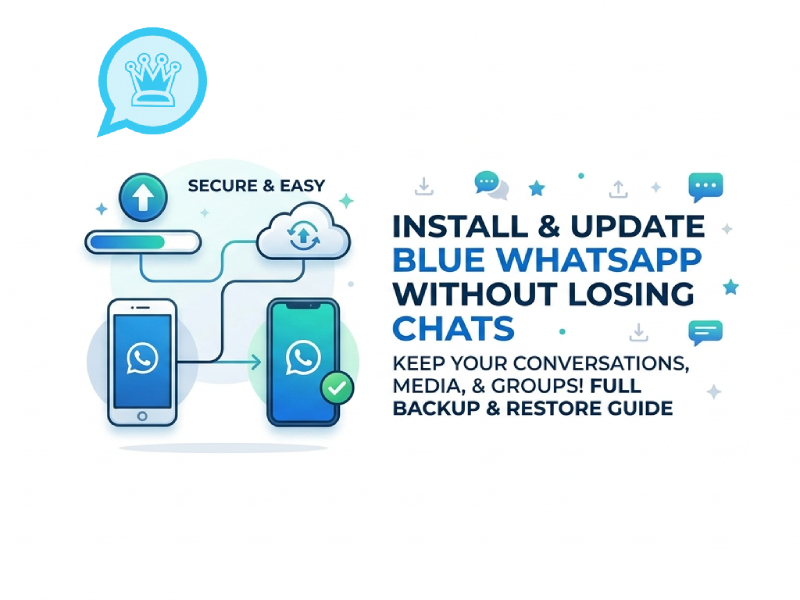
Many users choose Blue WhatsApp because of its customizable appearance and additional settings options. A common concern is that chat history will be lost when installing or updating the app, especially in situations like whatsapp chat transfer from android to android stuck on preparing, which can make users worry about data safety. The good news is that you can save your messages if you follow the correct steps, such as creating a proper backup before installation and restoring it carefully during setup.
This guide will show you how to securely install and update Blue WhatsApp while preserving your chat history and media files.
What Is Blue WhatsApp?
Blue WhatsApp is a modified version of WhatsApp, with its main highlights being its blue theme design and rich customization options, making it appealing to users who want a more personalized chat experience. Its appearance is very similar to the official application, so most users can get started without any learning. However, some users may run into issues like “Can’t install blue WhatsApp on Android,” which are often related to device settings, app permissions, or conflicts with the official version already installed.
Blue WhatsApp’s core philosophy is to give users more control over the app’s appearance and experience. You can change colors, adjust chat styles, and personalize the interface in ways that the standard WhatsApp doesn’t offer.
Besides appearance, it also includes some extra settings that many users find useful, such as:
- More options to control notifications
- Extra privacy settings for chats and status
- Flexible media sharing limits
Another key point is that Blue WhatsApp is installed via an APK file rather than an app store. This means users need to manually download and install the update, rather than having it update automatically.
Blue WhatsApp retains the core messaging experience while adding more features to customize and manage how the app is used.
Before You Start
Please take a few minutes to prepare before installing or updating Blue WhatsApp. This step helps avoid common problems such as lost chat history or installation failure.
Check your storage space. Make sure your phone has enough free space to install the new version and back up your files. If storage space is insufficient, delete infrequently used apps or large files.
Use a stable network connection. An unstable network connection may interrupt the download or backup process. It’s best to use Wi-Fi to avoid slow speeds or extra data usage.
Keep your phone fully charged. Before you begin, make sure your phone battery is between 30% and 50%. This prevents the phone from shutting down during installation or backup.
Another important step is to verify that your mobile phone number is valid. After installing the app, you will need to use this number to verify your account.
In addition, you should avoid uninstalling the current application too early. Make sure to complete the backup first. If you uninstall the app before saving your data, your chat history may not be recoverable.
Check your file manager. Make sure you have access to the “Downloads” folder and the WhatsApp/GB WhatsApp folder, etc. This makes it easier to find backup files and APK files during the process.
Step 1: Back Up Your Chats
Backing up is the most important step.
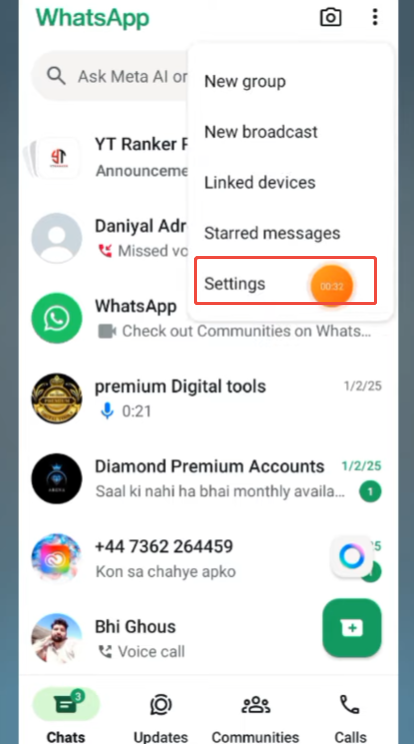
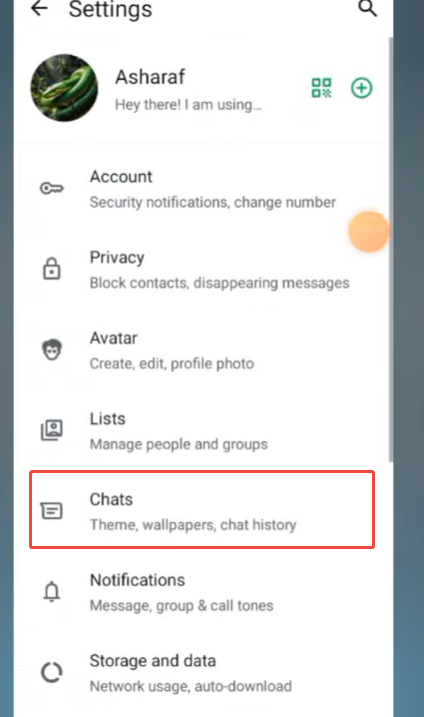
- Open Blue WhatsApp
- Go to Settings
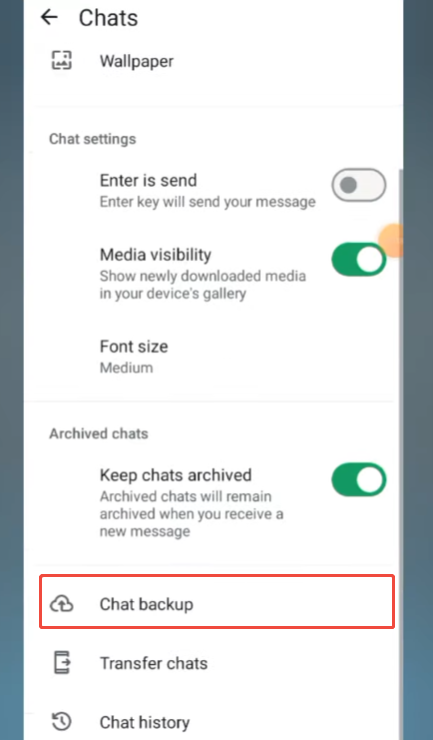
- Tap Chats
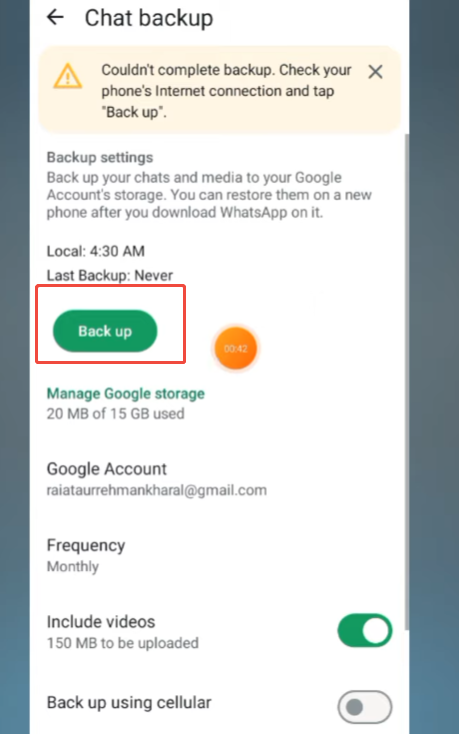
- Select Chat Backup
- Tap Back Up
Wait until the backup is complete. This saves your messages and media on your device.
Step 2: Find the Latest Version
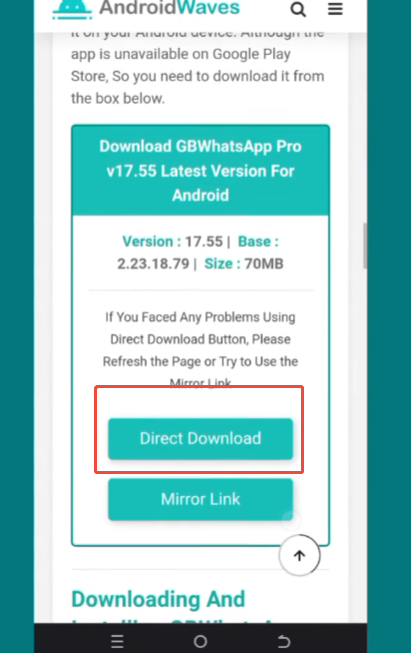
To install or update, you need the latest APK file.
- Search for the newest Blue WhatsApp version
- Download the file to your phone
- Make sure the file is fully downloaded before opening it
Keep the file in an easy-to-find folder, like Downloads.
Step 3: Allow Installation
If your phone blocks the install:
- Go to Settings → Security
- Enable Install Unknown Appsfor your browser or file manager
This allows your phone to install apps from outside the store.
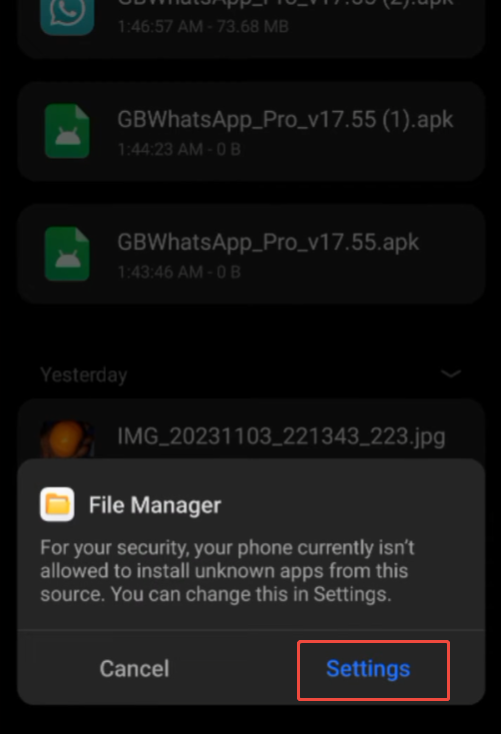
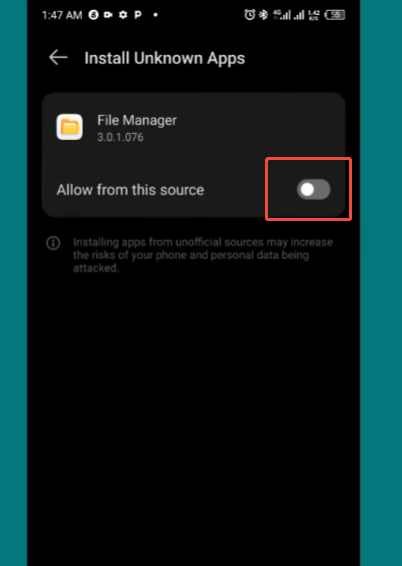
Step 4: Install or Update the App
Now you can install or update:
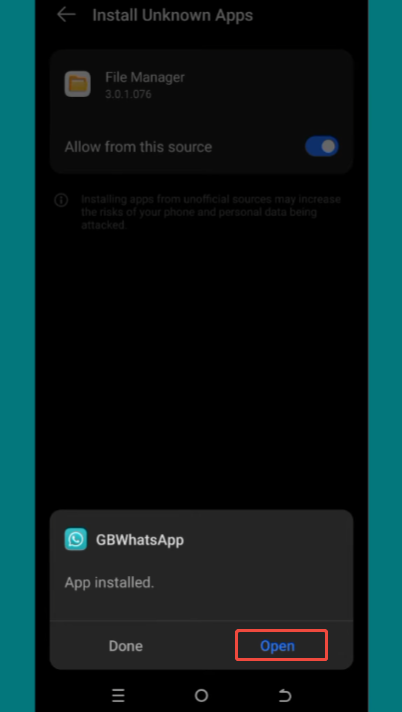
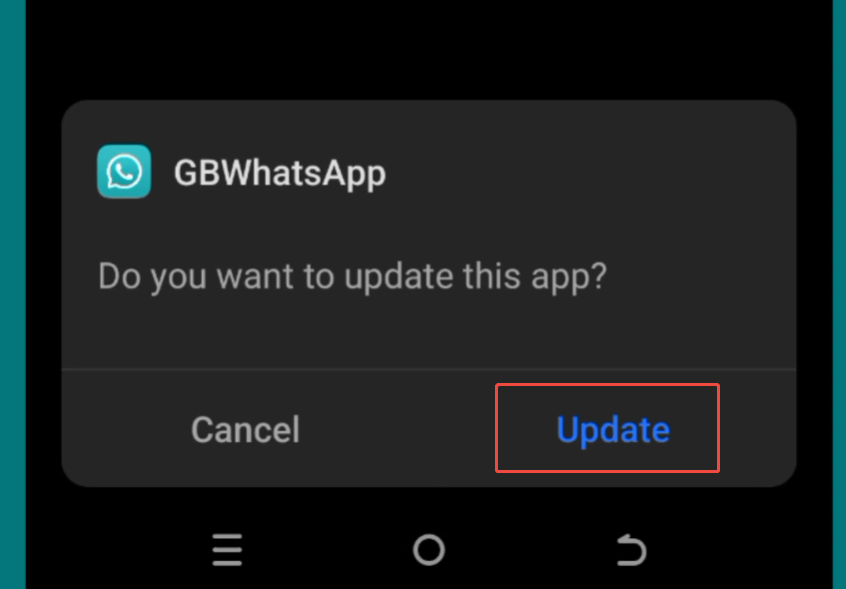
- Open the APK file
- Tap Install
- Wait for the process to finish
If you are updating, the new version will replace the old one. Your data should stay on the device.
Step 5: Restore Your Chats
After installation:
- Open Blue WhatsApp
- Verify your phone number
- The app will detect your backup
- Tap Restore
Wait until the restore process finishes. Your chats, images, and videos should return.
Common Mistakes to Avoid
Even small errors during install or update can lead to missing chats. Paying attention to a few details can help you avoid problems.
- Skipping the backup step
This is the most common issue. Always create a fresh backup before you install or update. Old backups may not include your latest chats. - Uninstalling the app too early
If you remove the app before backing up, your local chat files may be lost. Only uninstall after you are sure a backup exists. - Changing or deleting the app folder
Blue WhatsApp stores chat data in a specific folder on your phone. Renaming or deleting it can stop the app from finding your backup. - Using a different phone number during setup
The backup is linked to your number. If you verify a different number, the app may not detect your old chats. - Installing over a different package version
If the new APK is not compatible with your current one, it may not read the existing data correctly. - Interrupting backup or restore
Closing the app, losing internet, or low battery during these steps can lead to incomplete data. - Low storage space
If your phone is almost full, the restore process may fail or skip media files. - Not checking the backup file
Before updating, open your file manager and confirm that the backup folder exists and has recent files.
Extra Tips for Better Results
A few extra steps can make the installation and update process smoother and help you retain all your chat history.
Create backups regularly, not just before updating. This way, even if problems occur, you can still keep the latest copy of your chat history, especially when you plan to install or try features after a blue whatsapp plus download, as having a recent backup ensures your conversations remain safe and easy to restore.
Check the storage location of the backup. Open the file manager and make sure the backup folder is still in your phone’s storage. If you move files or clean up storage space, please avoid accidentally deleting this folder.
Having enough free space on your phone is also helpful. If storage space is almost full, the backup or restore process may stop midway. Before updating, try to reserve at least several hundred MB of free space.
Another helpful step is to keep your phone fully charged. If the phone is turned off during installation or recovery, the data may not load correctly. Charging your phone before you begin is a simple but important step.
You can also avoid using task cleanup apps during the update process. Some phones close background apps to save memory, which may interrupt the backup or restore process.
After the update is complete, please take a moment to check your chat history and media files. Open a few conversations to confirm that messages, photos, and videos are all there. If some content is missing, you can try to restore it before continuing to use the application.
Keep Your Chats Safe Over Time
Protecting chat history security is not just about a single update; it requires consistent attention and good habits over time. Developing a routine to back up chats, manage permissions, and stay aware of app changes is crucial, especially if you frequently use Blue WhatsApp. Many users who search for options like whatsapp blue v9.95 download often focus only on getting the latest version, but long-term data safety depends more on how regularly you secure and monitor your information.
It’s recommended to create backups regularly, not just when you plan to update the app. This way, even if unexpected situations occur, you can still retain a copy of the latest messages.
Regularly checking backup files is also helpful. Make sure they are stored properly on your device and are not accidentally deleted. If possible, it’s best to keep a backup in another location as well.
Another useful habit is to avoid making major changes during important conversations. For example, do not update the application while saving important conversations or media files.
By following these simple habits, you can ensure the security of your chat history and use Blue WhatsApp with peace of mind, without worrying about data loss.