One of the most common features of WhatsApp is “read receipts,” which is indicated by a blue checkmark (“blue tick”) displayed next to the message. While this feature helps confirm whether the recipient has read your message, sometimes you may want to read a WhatsApp message without letting the sender know. This could be due to privacy concerns, or it could simply be to avoid having to respond immediately. Many users seeking technical workarounds or privacy tips often search for WhatsApp message read but no blue tick Reddit to find community-driven solutions and hidden settings. If you’re wondering how to achieve this, then you’ve come to the right place.
In this article, we will explore various methods for reading WhatsApp messages without triggering the “blue ticks,” and we will analyze the pros and cons of each approach.
What Are Blue Ticks on WhatsApp?
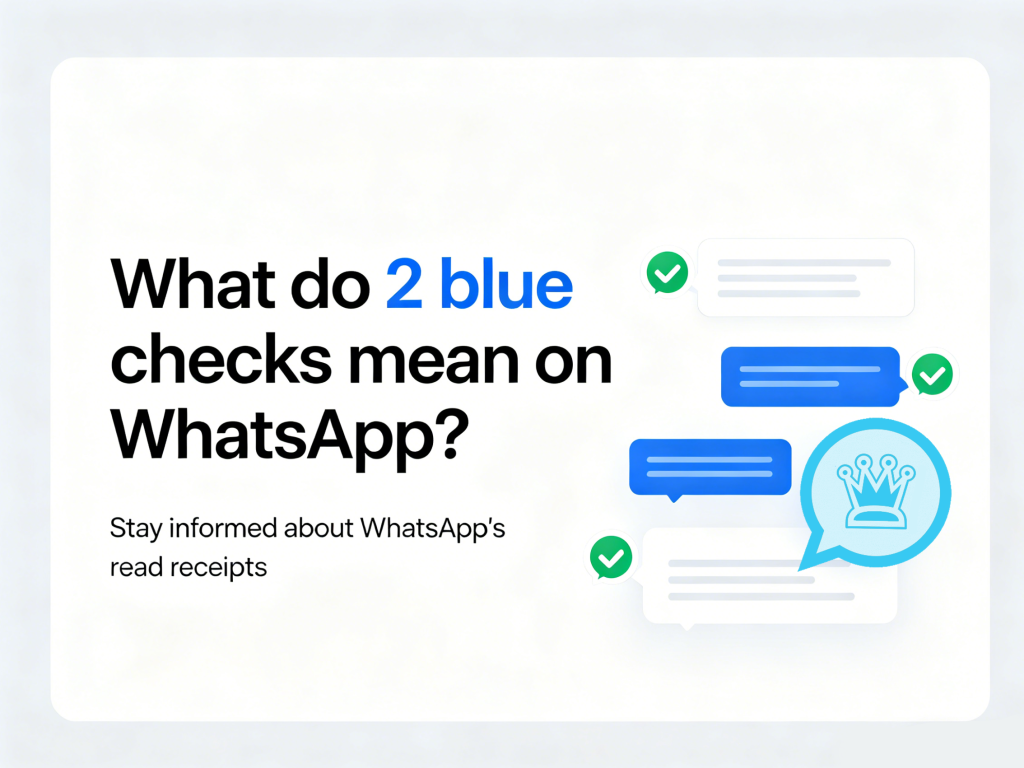
The blue checkmark on WhatsApp is a feature that indicates when a recipient has read a message, and similarly, a WhatsApp status blue circle appearing around a contact’s profile picture serves as a visual cue that they have recently shared a new update. Both elements are part of the broader “read receipt” and activity system, which WhatsApp introduced to allow users to keep track of the status of their messages and connections at any time.
Here’s a breakdown of what the different ticks mean:
1. Single Gray Tick
When you send a message, you will see a gray checkmark next to the message. This means the message has been sent from your phone, but has not yet been delivered to the recipient’s device. This could be because the recipient’s phone is offline, switched off, or outside of network coverage.
2. Two Gray Ticks
When you see two gray checkmarks, it means the message has been delivered to the recipient’s device. This does not mean that the other party has read the message. Once WhatsApp successfully sends a message to the recipient’s phone, these two gray ticks will appear even if the recipient has not yet opened the app.
3. Two Blue Ticks
A blue checkmark will appear when the recipient has read the message. When a message is opened in the WhatsApp app, both checkmarks turn blue. This feature lets you know for sure that the other person has seen your message.
4. Blue Ticks in Group Chats
In group chats, the display mechanism for the blue checkmark is slightly different. The message will only display two blue checkmarks when all members in the group have read it. If only some members have read the message, the checkmark you see will appear as a mix of gray and blue, and the specific color will depend on the actual actions of each member.
Methods to Read WhatsApp Messages Without Blue Tick
1. Turn Off Read Receipts
One of the simplest ways to prevent WhatsApp from showing blue ticks is to turn off read receipts in the app’s settings.
Here’s how you can do it:
- Open WhatsApp.
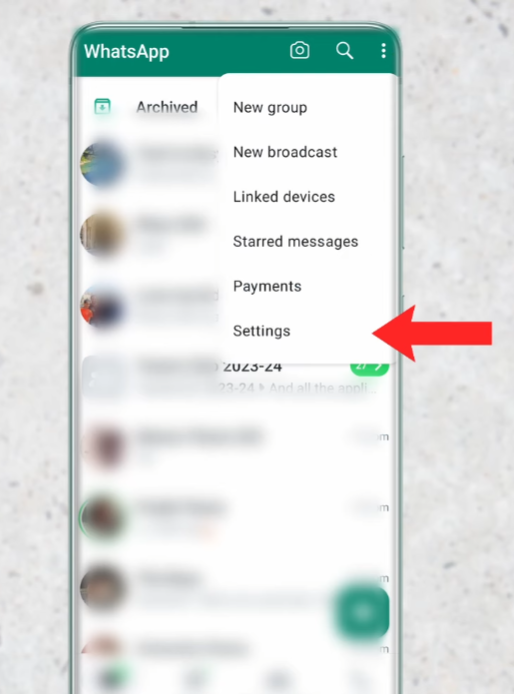
- Tap on the three dots in the top-right corner and go to Settings.
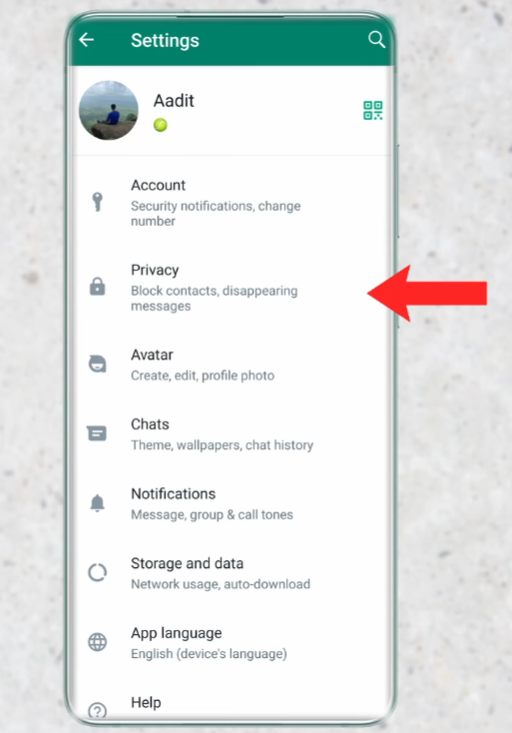
- Tap on Privacy.
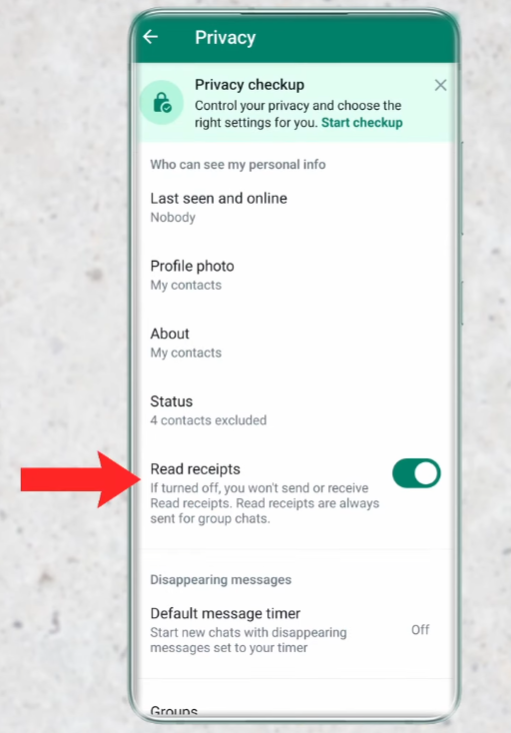
- Under the Privacy settings, find and uncheck Read Receipts.
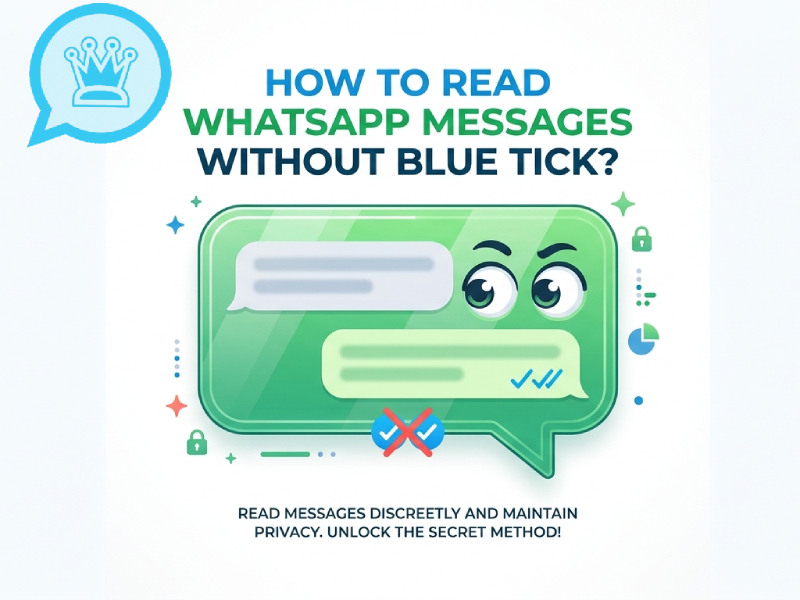
Turning this option off will prevent the blue ticks from appearing when you read messages. There is a catch: if you turn off the “read receipt” function, you will not be able to see whether the other party has read your message. This is a two-way feature.
2. Airplane Mode Method
If you don’t want to completely disable the “read receipts” feature, another effective method is to turn on “airplane mode”. When airplane mode is turned on, your phone will disconnect from the internet, meaning WhatsApp will not send a “read” receipt to the sender.
To use this method:
- Disable your internet connection by turning on Airplane Mode.
- Open WhatsApp and read the messages.
- Once you’ve read the message, close WhatsApp completely by going to your recent apps screen and swiping WhatsApp away.
- Turn off Airplane Mode and reconnect to the internet.
By doing this, WhatsApp will not be able to send the read receipt, and the sender won’t see the blue ticks until you open the app while connected to the internet again.
3. Preview WhatsApp Messages from the Notification Bar
If you receive a WhatsApp message and only want to quickly check the content without opening the app, you can use the notification preview feature.
Here’s how to do it:
- Simply pull down the notification shade on your phone.
- Look at the message content in the WhatsApp notification preview.
In this way, you can read the message without opening the app, which means the sender won’t know you’ve read it.
This method is limited by the number of characters displayed in the notification, so it is only suitable for short messages. In addition, this method only works if you have enabled WhatsApp notifications.
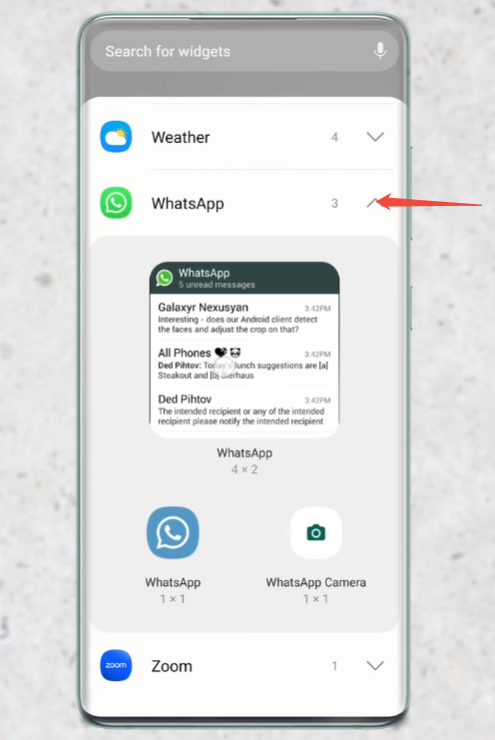
4. Use WhatsApp Widgets
WhatsApp widgets allow you to view incoming messages directly from your home screen without opening the app. Here’s how to use it:
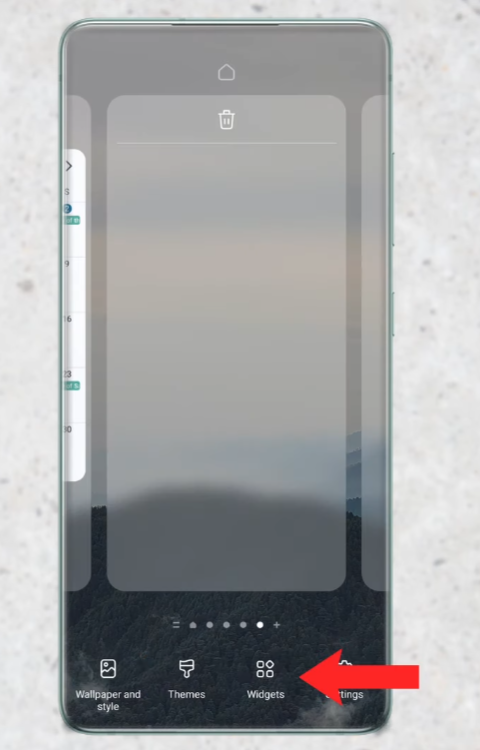
- Long-press on your home screen.
- Tap Widgets.
- Find the WhatsApp widget and place it on your home screen.
- Tap the widget to see your recent messages.
By using widgets, you can read messages without opening WhatsApp, which means the sender will not see the “double blue ticks.” However, message previews on widgets are usually short and may not display the full message content, especially for longer texts.
5. Use WhatsApp Web
If you are using WhatsApp Web, there is indeed a method to read messages without triggering the “blue double ticks”; however, this requires a little extra care on your part. You can open the WhatsApp web version on your computer and log in, then read the messages in your browser, or alternatively, some users look for advanced features via a WhatsApp Blue Plus download to gain more granular control over their privacy. Please note, however, that if WhatsApp Web has already fully synchronized with your mobile phone, the blue double ticks may still appear, depending on how you have configured your settings within the app.
To avoid this situation, we recommend that you turn off your phone’s data connection before reading messages via the WhatsApp web version; alternatively, you can try using one of the other methods mentioned above. Please remember that the functionality of WhatsApp Web still relies on your phone’s internet connection, so improper operation may cause synchronization issues.
Why Would You Want to Turn Off Read Receipts?
There are several reasons why someone might want to read messages without triggering the blue ticks:
- Privacy: You might not want others to know exactly when you’ve read their messages.
- Avoid Pressure to Respond Immediately: Sometimes, you just need time to think or are busy with other things and don’t want to feel pressured to reply right away.
- Prevent Unwanted Attention: If someone is messaging you too often, you may not want them to know that you’ve read their message, especially if you’re not planning to reply.
Final Thoughts
While WhatsApp’s “blue double-tick” feature helps users know when their messages have been read, there are certain situations where you might prefer not to reveal this information, which is why many users ensure they have the blue whatsapp latest version to explore the most updated privacy settings. The methods described above can help you read WhatsApp messages without the sender noticing, allowing for a more discreet messaging experience.
Whether you choose to turn off “read receipts” or use the “airplane mode” trick, remember. Ultimately, it’s all about managing your personal privacy and giving you control over when and how you interact with others on this platform.