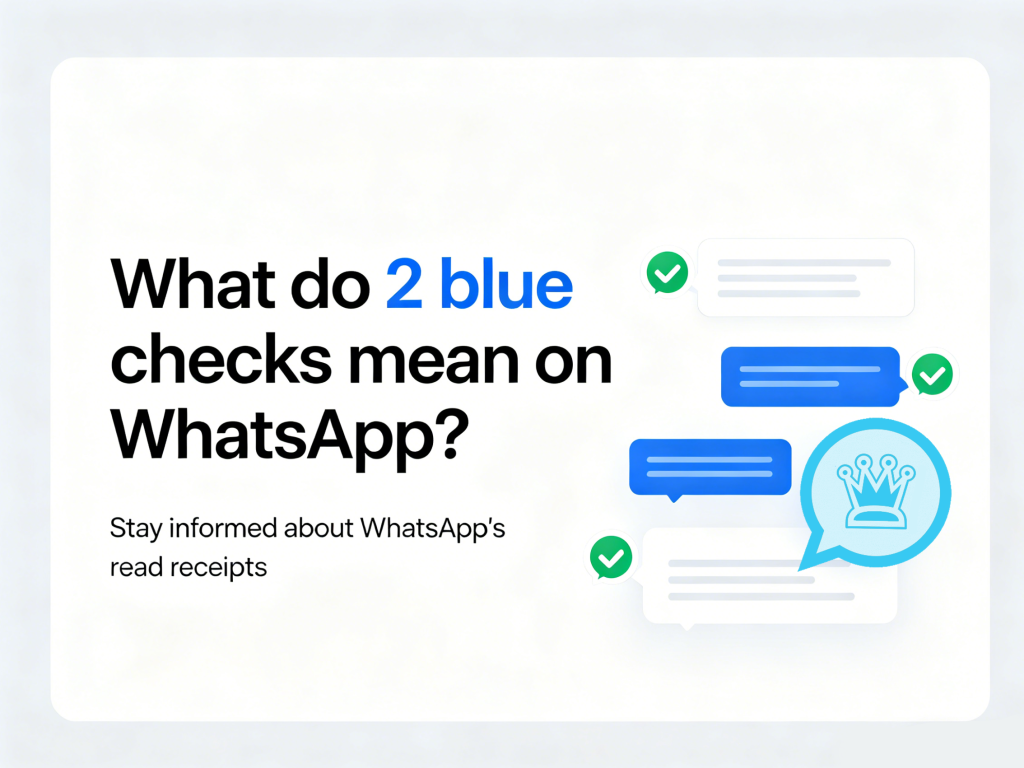
If you value privacy, one of the first settings you may want to change is the blue tick read receipt in WhatsApp. The blue double ticks can sometimes feel like an invasion of privacy, making us feel obligated to respond right away. Many users want to know how to hide blue tick in WhatsApp so they can read messages without letting the sender know. The good news is that both official WhatsApp and Blue WhatsApp 2026 make this easy.
In this guide, you’ll learn how to off WhatsApp blue tick, how to turn it back on, and a few extra privacy tricks.
What Are Blue Ticks in WhatsApp?
Blue ticks are read receipts.
When someone sends you a message:
- 1 gray tick = message sent
- 2 gray ticks = message delivered
- 2 blue ticks = message read
These blue ticks, officially called “Read Receipts,” were introduced by WhatsApp to provide transparency in messaging. However, many users value privacy over transparency, which is why knowing how to hide blue tick in WhatsApp has become essential.
How to Disable Blue Tick in Official WhatsApp
Follow these simple steps:
- Open WhatsApp
- Tap Settings
- Go to Privacy
- Find Read Receipts
- Toggle it OFF
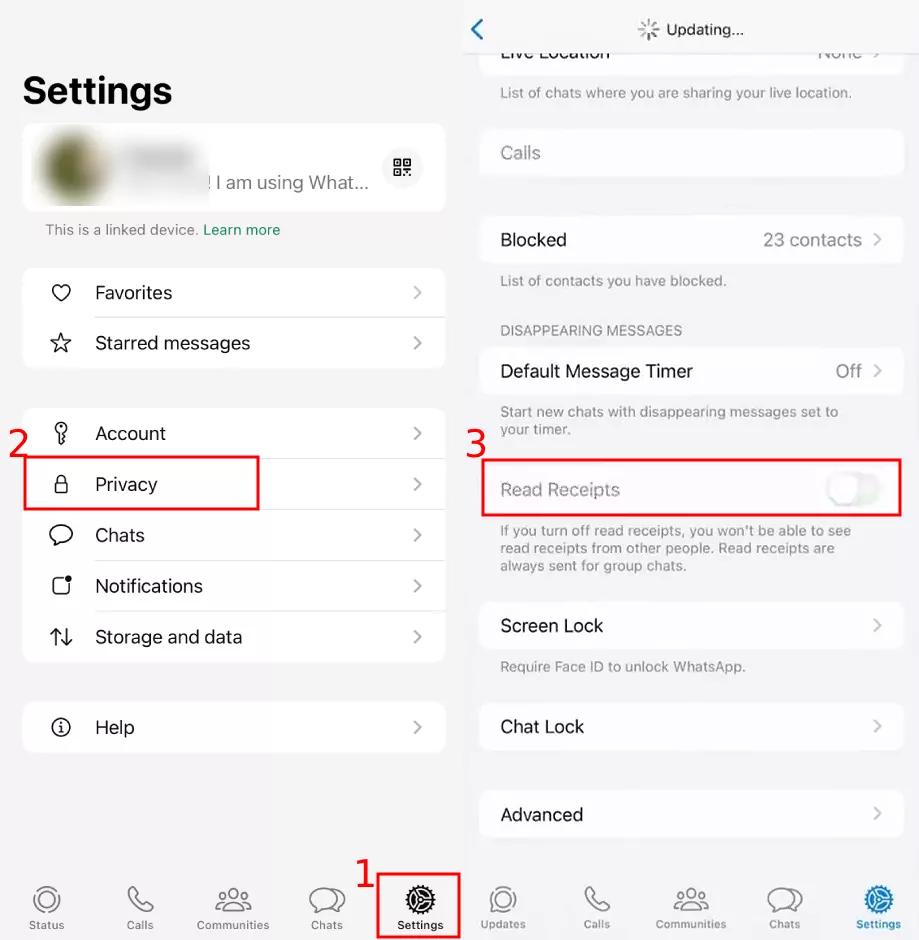
Once disabled:
- Others won’t see blue ticks when you read their messages
- You also won’t see when others read your messages
- This only works for personal chats
- Group chats still show blue ticks
How to Hide Blue Tick in Blue WhatsApp 2026
If you use Blue WhatsApp 2026, the privacy controls are usually more advanced.
Typical steps:
- Open Blue WhatsApp
- Tap Mods / Extra Settings
- Go to Privacy
- Select Contacts or Chats
- Enable Hide Blue Ticks
- Save and restart if required
A major advantage of blue whatsapp 2026 is that you can often:
- Hide blue ticks for specific contacts
- Hide second ticks
- Freeze last seen
- Hide typing status
- Disable “viewed status” receipts
This gives much more flexibility than the official app.
How to Turn Blue Tick Back On in WhatsApp
If you ever change your mind and want to see when others have read your messages, and also let them see when you’ve read theirs, here’s how to on blue tick in WhatsApp:
- Open Settings
- Tap Privacy
- Turn Read Receipts ON
Now senders will again see when you’ve read their messages.
Important Things to Know Before Turning It Off
Before you disable read receipts, keep these points in mind:
- You Lose Read Receipts Too
If you hide yours, you also cannot see others’ blue ticks.
- Voice Messages Still Show Read Status
Even with blue ticks off, voice notes may still show as played.
- Group Chats Are Different
In groups, blue ticks remain active once everyone has read the message.
- Mod Apps May Work Differently
In Blue WhatsApp 2026, some custom privacy options may work independently.
Bonus Privacy Tips for Blue WhatsApp 2026
If privacy is your goal, combine blue tick settings with:
- Hide online status
- Freeze last seen
- Disable typing indicator
- Anti-delete messages
- Lock chats with password
- Hide media from gallery
These features make blue whatsapp 2026 popular among privacy-focused users.
FAQ
- Can I hide blue ticks for one person only?
Official WhatsApp does not support this. Some modded versions like Blue WhatsApp 2026 may allow it.
- Will people know I turned blue ticks off?
They won’t get a notification, but they may notice your messages never turn blue.
- Does this work for status views?
Status view receipts are separate and can also be disabled in Privacy settings.
- Can I still see blue ticks in groups?
Yes, group chats still use blue ticks.
Final Thoughts
Learning how to disable blue tick in WhatsApp is one of the best privacy tweaks for users who don’t want pressure to reply instantly.
Whether you use the official app or Blue WhatsApp 2026, the steps are quick. If your main goal is privacy, mastering how to hide blue tick in WhatsApp is a great place to start.